Hello, soldiers!
In the 1.4.0 update, two long-awaited features will come to Caliber: a preset system and mass Container opening.
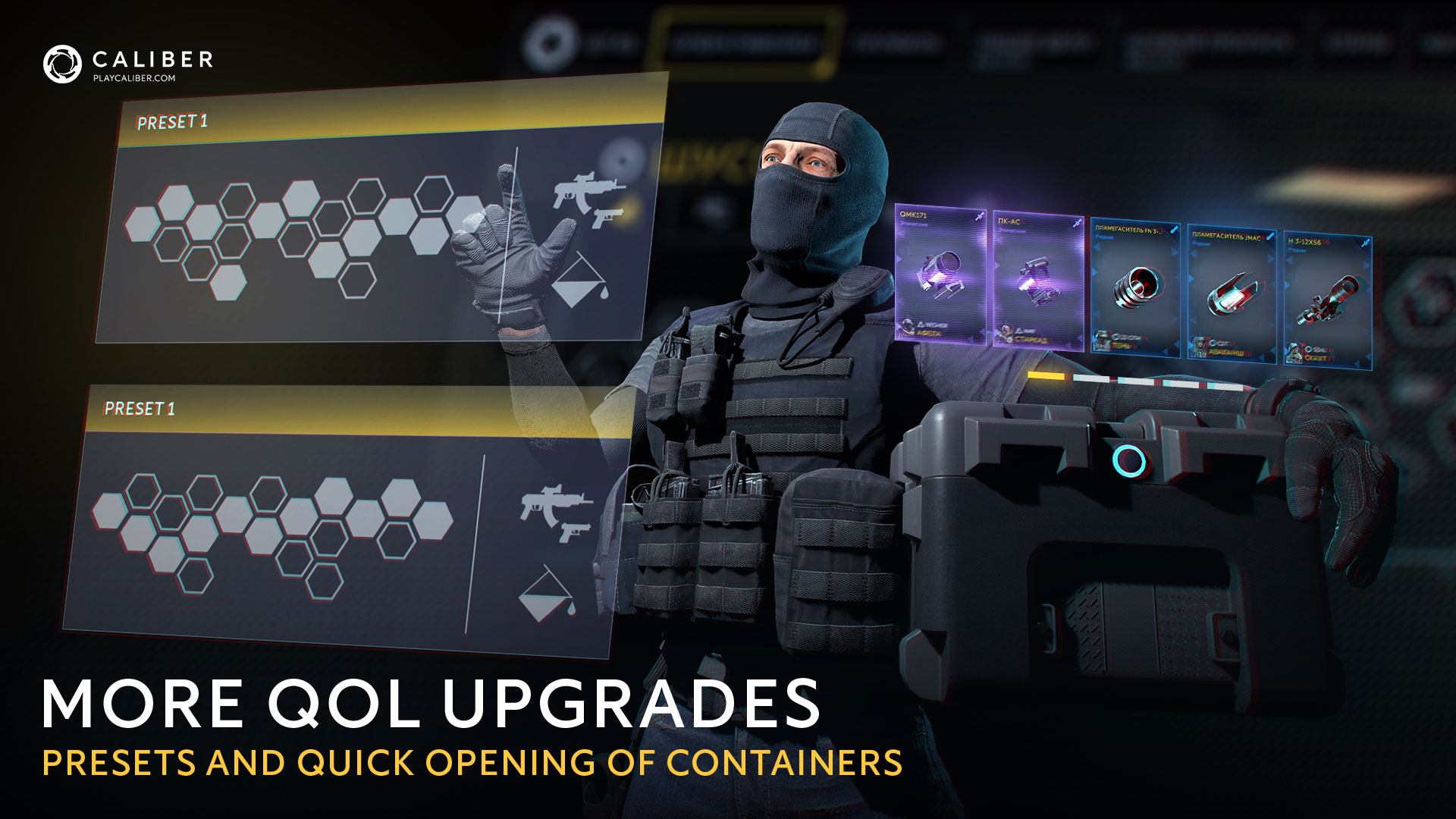
The first one will allow players to apply operators’ upgrades, skills, weapons, and Outfits more quickly, and the second one will reduce the time needed for opening Containers.
In this article, we’ll talk about how it will work.
Presets will allow you to save operator’s settings and switch quickly among them.
This feature will be useful if you use different builds for different modes and don’t want to change everything manually before each battle.
You can choose a saved preset on the operator's page or during the preparation stage just before the battle.
Go to the operator’s page and choose a preset slot in a new menu.
Customize the operator for your playstyle—settings will be saved automatically. After that, you will be able to switch among your presets and return to a needed build.
Which parameters can be saved:
Please note that Reserves are not included in presets.
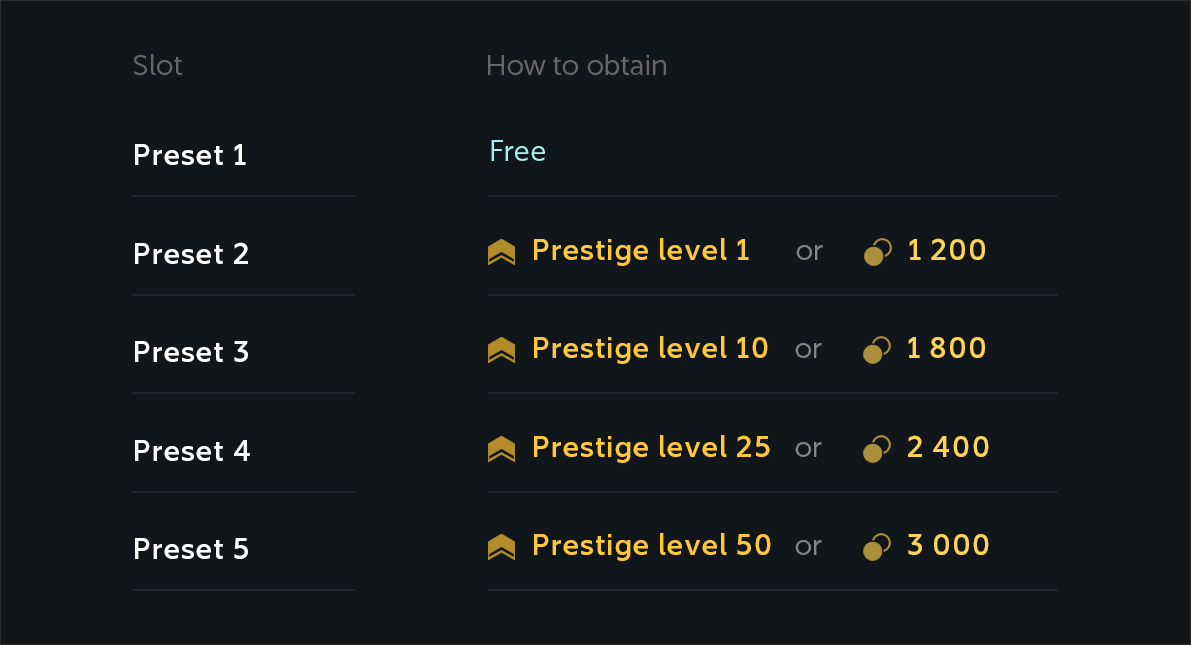
Initially, each operator has only one preset slot. Extra slots can be unlocked with Prestige leveling up or purchased with Coins.
There can be up to 5 presets for each operator.
You can share your presets with other players, as well as use their presets. It’s convenient if you want to try some new builds or quickly share your own.
If you don’t have some items of another player’s build, only available ones will be applied—the rest just won’t be used.
Reserves, Emotes, Executions, and Reprisals are not included—don’t forget to apply them after activating the other player’s preset.
To share a preset, just go to Share presets menu and copy the unique code. Then simply send this code to another player.
To use another player’s preset, open the Import Equipment tab in the menu of the operator for whom you want to receive a preset, paste the code and activate the preset.
In the Containers tab, there will be a button for their mass opening. This feature will allow players to open up to 10 Containers at once. After that, all received rewards will be displayed.
If there are fewer than 10 Containers, the system will open all available ones.
This feature will work with all types of Containers except those which require you to choose your reward—you’ll have to open them manually.
In the same window, there will be a new button—View received rewards. There will be all the rewards that were obtained from Containers in the current game session.
This data resets after each new login to the game.
We continue to introduce QoL features and will monitor your feedback. Feel free to share your thoughts on our social media channels: your comments help us make Caliber better.


